Troubleshooting FAQ
Troubleshooting FAQ bjarteHere we try to collect some common questions and the answers to them. If you have some comments, or you feel something is missing please leave a comment on these pages.
Microsoft Edge data directory error
Microsoft Edge data directory error BruceSome users encounter a problem with the Edge-based web browser when starting Macaos Enterprise.
This results in an error message like:
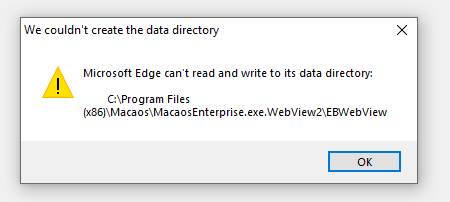
This error is really a system error, and the solution may depend on your user configuration. Try the following:
- Close Macaos Enterprise, delete the folder (data directory) listed in the error message, and then run Macaos Enterprise as a normal user.
- Try running Macaos Enterprise as an administrator
- Try a complete reinstall, possibly to a folder where you have complete read/write privileges.
If none of these work, you may need to get help from your IT department.
Download and installation issues
Download and installation issues BruceIssues related to downloading and installing Macaos Enterprise
When updating, Windows asks if I want to allow Web Updater to make system changes
When updating, Windows asks if I want to allow Web Updater to make system changes BruceMacaos Enterprise uses an automatic updating mechanism so that you always have the latest version available. After downloading the updated version, Macaos Enterprise runs a small installer program to replace and restart itself. Newer operating systems (Windows Vista, Windows 7 and later) may ask if you wish to allow this installer program to run. The installer program is called Web Updater from tmssoftware.com bvba. You can safely allow this updater to make system changes when updating Macaos Enterprise.
I cannot start Macaos Enterprise because gdiplus.dll is missing
I cannot start Macaos Enterprise because gdiplus.dll is missing BruceMacaos Enterprise makes use of Windows GDI+ for graphics. GDI+ is an integrated subsystem in newer Microsoft Windows operating systems (such as XP and Vista). It is also compatible with older systems (such as 98, ME, NT and 2000) but the dll file may not be located in your search path.
Most likely, you have the file somewhere on your system already, but Windows is not able to find the file when starting Macaos Enterprise. Search your hard disk for gdiplus.dll and, if found, copy it to your Macaos Enterprise folder.
If you do not find the file on your hard disk, try downloading it from www.microsoft.com or contact Macaos Support for assistance.
I downloaded Macaos Enterprise executable, but when I restarted it was no longer on my computer
I downloaded Macaos Enterprise executable, but when I restarted it was no longer on my computer bjarteWhen you get the dialog to download Macaos Enterprise please choose a directory to download Macaos Enterprise to. If you don't specify a directory and instead just run the executable, the file will be saved to a temporary folder on you system. Depending on the settings in the browser the file may be deleted when you close your browser, and thus you would need to follow the link received in your mail and download Macaos Enterprise again.
I filled out the form to download Macaos Enterprise but I got no mail
I filled out the form to download Macaos Enterprise but I got no mail bjarteMost likely, the mail from Macaos disappeared in a Spam filter. If you have a local Spam folder in your mail box, please check if the mail is there.
Another possibility is that you filled out the form for becoming a user of this website. Be sure that you have filled out the form at Get Macaos Enterprise.
If you haven't received a mail with download info within one working day, please contact your sales office for help. Alternativly you can send us a mail at support@macaos.com and we will be happy to help you.
Symantec Endpoint Protection identifies Macaos Enterprise as a virus
Symantec Endpoint Protection identifies Macaos Enterprise as a virus BruceWe have received reports from some users that Symantec Endpoint Protection version 12.x falsely identifies Macaos Enterprise as a risk of type Bloodhound.Sonar.9. This problem apparently also applies to Norton Internet Security. Symantec has confirmed to us that this detection is a "false positive." If you are having this problem, contact us at support@macaos.com for a workaround.
Login, connection and compatibility issues
Login, connection and compatibility issues BruceIssues relating to server access, login, updates and system compatibility.
Why are some texts larger than others? (Windows 7)
Why are some texts larger than others? (Windows 7) BruceFont scaling in Windows 7 does not work reliably with Macaos applications. Some GUI features scale properly while others do not, as shown in the examples here.
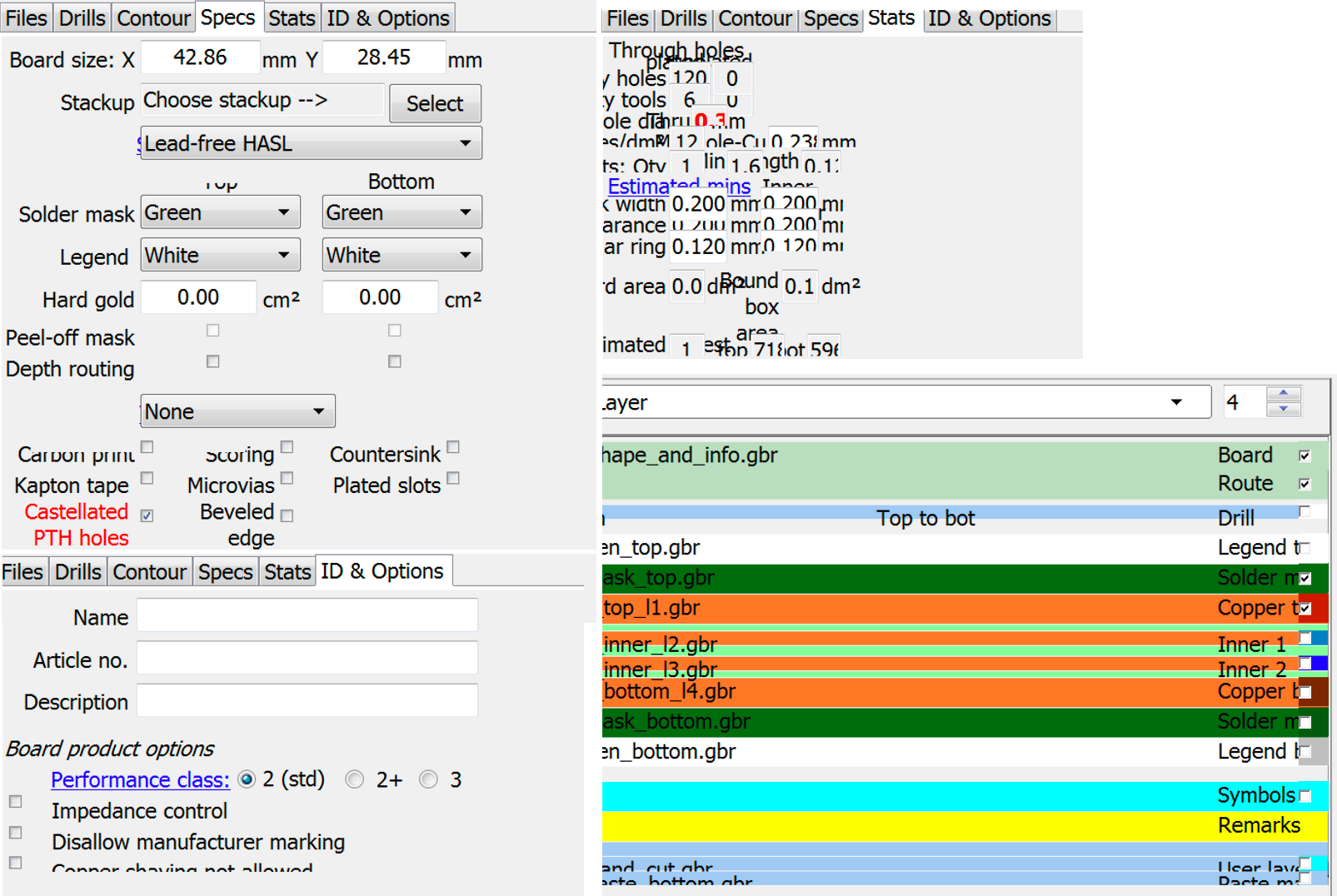
We have only seen this problem when running a Macaos application under Windows 7, with the font scaling factor set to something other than 100%. We are unaware of font scaling issues with later versions of MS Windows.
Windows 7 is an obsolete operating system, which is no longer subject to mainstream support by Microsoft. If you continue to use Windows 7, we advise you to choose 100% font scaling.
Upgrading doesn't work (Windows Vista)
Upgrading doesn't work (Windows Vista) bjarteIf you right-click on the shortcut or the MacaosEnterprise.exe and select "Run as Administrator".
Upgrading should work fine. You only need to do this when you want to run the upgrader.
Why are some buttons black or missing? (Windows XP)
Why are some buttons black or missing? (Windows XP) BruceThere appears to be some kind of problem with the way that Windows XP Themes sometimes interacts with some of the controls in a program. Symptoms include black buttons or column headers, missing buttons, HSL to RGB errors, etc.
Most of the time, these problems can be resolved by changing the Windows XP theme to another theme. Right-click on the desktop and choose Properties. On the Themes page, select a different theme and click Apply. Usually, you can then change back to the theme you were using without the problem reappearing.
I try to login, and I get the error message "(3) authorization not valid"
I try to login, and I get the error message "(3) authorization not valid" bjarteThis means either your user name or password was wrong. Make sure you typed in everything correctly.
If you lost your user name you can find it in the macaos enterprise ini file.
If you can't remember your password, fill out the Get Macaos Enterprise form or contact us at support@macaos.com. Your login info will be sent to you by e-mail.
Also if you check the Auto login on program start check box, you won't have to login the next time you start the program.
I try to login, and I get the error message "Access Denied"
I try to login, and I get the error message "Access Denied" bjarteThis happens when your user is not setup with sufficient rights. Please contact us at support@macaos.com, and we will fix it right away.
Why do I get a "Connection error - Channel is busy" message?
Why do I get a "Connection error - Channel is busy" message? BruceThis error arises when a firewall is somehow corrupting or truncating data being passed to Macaos Enterprise from the server.
We have confirmed that the NVIDIA ActiveArmor firewall supplied with NVIDIA nForce Network Controller causes this problem. We have reason to believe that other firewall versions from NVIDIA also cause problems. Turning off the firewall does not solve the problem. The firewall must be uninstalled.
Please let us know at support@macaos.com if you have this type of problem with other firewall or anti-virus products.
Macaos Enterprise issues
Macaos Enterprise issues BruceIssues related to using Macaos Enterprise
Macaos Enterprise fails on program startup
Macaos Enterprise fails on program startup BruceStarting with version 4.4, Macaos Enterprise makes use of OpenGL 3D graphics rendering routines in the Mechanical Part viewer.
Some users have reported that they encounter a system error when starting Macaos Enterprise, after having upgraded from a version prior to 4.4. Usually, a log file is generated which refers to the graphics driver and an error which arose within the OpenGL rendering system.
In all cases that we are aware of, this problem is resolved by updating the graphics driver to the latest version.
Fails to import gerber or drill file
Fails to import gerber or drill file BruceAlthough we try to support all kinds of Gerber and drill files, the sometimes ambiguous nature of the Gerber and Excellon "standards" can lead CAD system producers to make unconventional choices when generating Gerber and drill files. Macaos Enterprise has been tested with files generated by dozens of CAD systems, but we have not been able to test all functionalities of all versions of all CAD systems.
Our team is very interested in collaborating with you to make Macaos Enterprise better, so please send a mail to support@macaos.com with an explanation of the problem and any files you cannot get to work.
Why do my drill files have different sizes?
Why do my drill files have different sizes? BruceUnfortunately, many CAD systems generate drill files that cannot be unambiguously interpreted. Since the coordinates in drill files have no decimal points, some guessing may be required.
By default, a drill file is assumed to be in inches, with leading zero suppression and 4 digits after the decimal point. However, the file might actually be in mm, it might have trailing zero suppression, and there might be 3 or 5 digits after the decimal. If the file does not contain a command to specifically indicate that its coordinates are different from the default, then the Macaos Import Module will have trouble interpreting the file correctly.
One of the tricks we use is to look at the tool diameters. If there are tool diameters larger than 0.5, then the file is assumed to be in mm, even though there is no specific mm command (M71 or METRIC) in the file. This can lead to problems if you have more than one mm drill file, where none of them have mm commands and some of them do not have diameters larger than 0.5. In such a case, some files will be interpreted in mm and others in inch.
The workaround in such a case is to add to the file a line containing the command
M71
at the beginning of the data section of the file. If the file has a header section (ends with a % line and might begin with an M48 line) then the M71 line should be added just after the header section.
Other issues
Other issues BruceOther issues
Does Macaos Enterprise work on Linux?
Does Macaos Enterprise work on Linux? bjarteMacaos Enterprise is designed to run on Windows, but will run pretty well on Linux when you emulate a windows environment through a tool like Wine. We have made a simple guide for Using Macaos Enterprise on Linux.
How do I uninstall Macaos v3.85?
How do I uninstall Macaos v3.85? bjarteFirst, open Macaos v3.85 and go to the Settings page. Check the Input, Output and Temp folders. You probably want to delete the temp folder. You might also wish to delete the other two, but be sure you don't delete any important files.
Then, simply delete the entire folder and all subfolders. Macaos 3.85 does not have any entries in the registry.